To map your ERP’s product codes to Global Tax Determination Goods/Service codes, follow these steps:
- Log in to Global Tax Determination from the S1 Platform.
- Make sure the right organization is selected from the dropdown on the left panel.
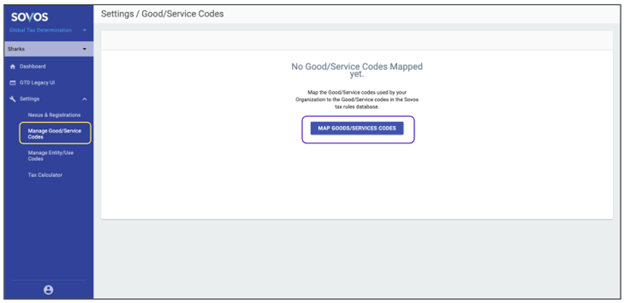
- Go to Settings and click Manage Goods/Service Codes.
- Click Map Goods/Service Codes on the main screen.
-
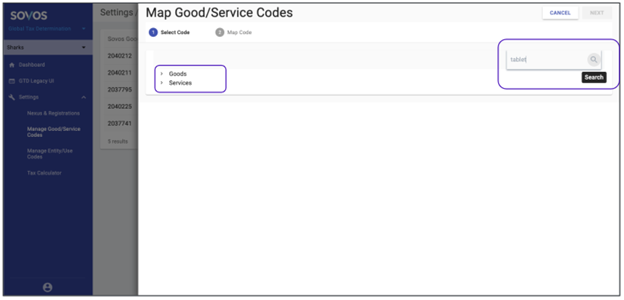
Select the Goods/Service code from the dropdown menu or enter a keyword into the search bar after clicking on the magnifying glass icon.
-
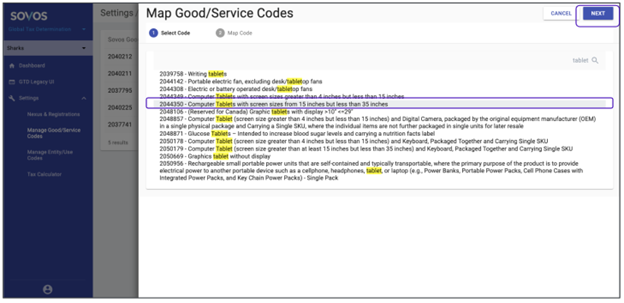
Click the appropriate Goods/Service code, then click Next.
-
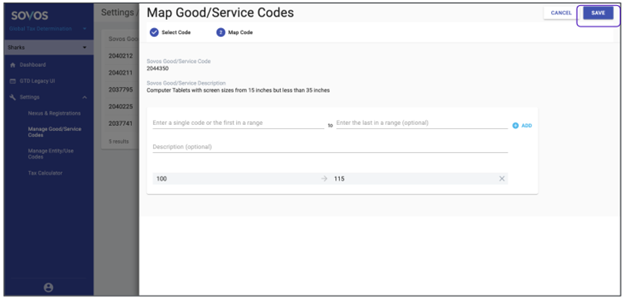
Enter your ERP’s product code in the empty fields. You can provide one code or a range of codes, and a description if you want to. Click Add.
Make sure that all your product codes have as many digits as your highest product code. For example, if your product codes range from 1 to 234, always use the 3-digit form even for the product codes that are not 3-digit numbers:
234 → 234
23 → 023
2 → 002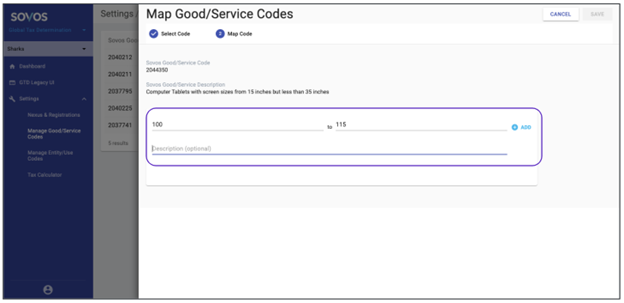
-
You can keep adding more product codes to this Sovos Goods/Service code. When you are finished, click Save in the top right corner.
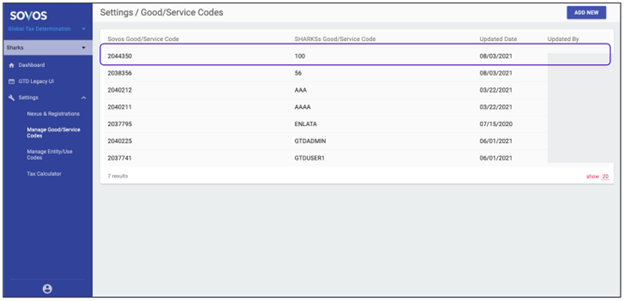
- Your mapping will show up in Settings > Manage Goods/Service Codes.
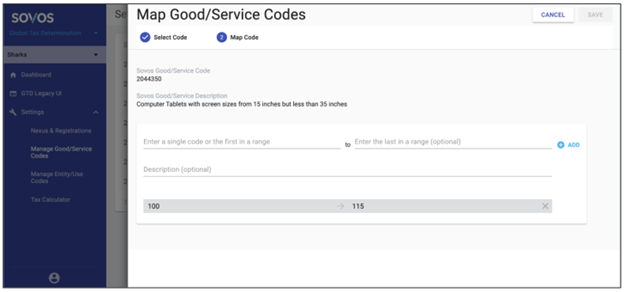
- You can click a mapping to see the details and to add more mappings to the same Sovos Goods/Service code by repeating step 7.
Comments
0 comments
Please sign in to leave a comment.